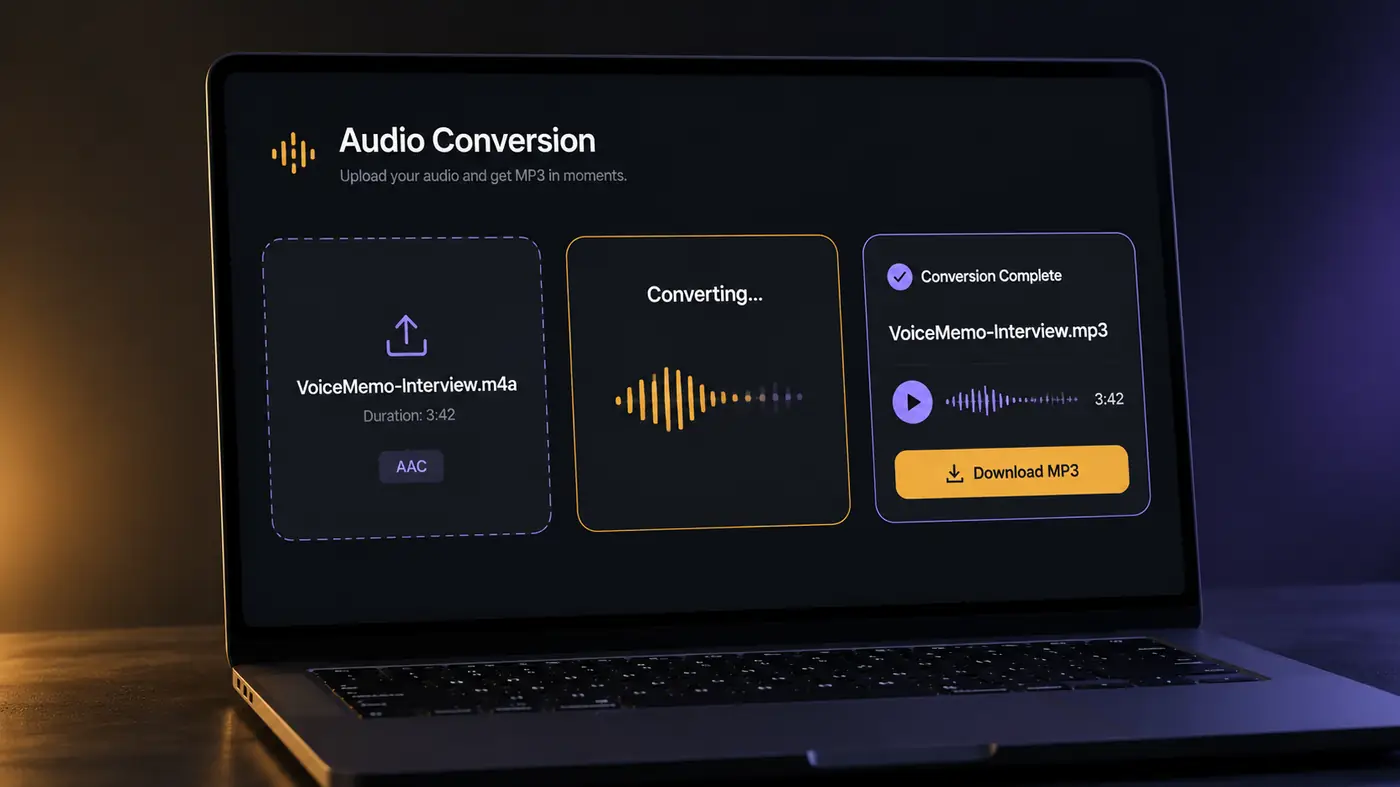
M4A files are common in iPhone Voice Memos, Mac exports, and many audio workflows. MP3 is still widely supported by media players, editing software, car stereos, and other devices.
The simplest answer: to convert .m4a to .mp3, start with an audio file you have the right to convert, upload it to an online converter, preview the MP3, then download it. Preview the result before you delete or replace the original.
This guide explains why people convert M4A to MP3, what to check before starting, how to convert a file online, how to export an iPhone Voice Memo, what happens to audio quality, and how to troubleshoot common problems.
Why Convert M4A to MP3?
M4A is a common audio file container. The audio inside it is often AAC, although some M4A files contain Apple Lossless Audio Codec (ALAC).
MP3 is a different audio format with broad compatibility. You may want to convert when the next app, device, or person does not handle M4A properly.
Common reasons include:
- A video or audio editor works better with MP3.
- A car stereo, media player, or older device does not recognize M4A.
- A teammate or client asks for an MP3 voiceover or demo.
- You want one widely supported audio format for sharing or playback.
- A specific workflow requires MP3 instead of M4A.
You do not need to convert every M4A file. If your current apps and devices already support M4A, keeping the original can avoid an unnecessary second encode.
What You Need Before You Start
Before you convert an M4A file to MP3, check a few things.
Make sure you have the right to use the file
Only convert audio you own or are authorized to copy. Do not use a converter to bypass DRM or other access restrictions.
Check that the file is an accessible M4A
The filename extension should normally be .m4a, and the file should contain supported audio. Protected or unusual files may not convert successfully.
Keep the original file
Conversion creates another version of the audio. Keep the original M4A until you have checked the MP3 and confirmed that it works for your needs.
Plan to preview the result
If the source is already compressed, converting it again can introduce additional quality loss. Listening to the MP3 before you share or archive it is a simple way to catch problems.
How to Convert M4A to MP3 Online
For a Voice Memo, short recording, demo, or voiceover, an online converter is usually the fastest path. You do not need to install desktop software.
With AIMakeSong, the basic flow is:
- Sign in to your AIMakeSong account.
- Upload the
.m4afile you have the right to convert. - Start the M4A to MP3 conversion.
- Preview the resulting MP3.
- Download the file if it sounds right.
AIMakeSong requires sign-in. New accounts can claim a free credit trial for eligible conversions. Extra usage follows your plan.
This workflow is built for one file at a time, with a preview before download. It is not a studio batch encoder for an entire music library.
How to Convert M4A to MP3 from an iPhone Voice Memo
If the recording starts in the iPhone Voice Memos app, you normally need to get the recording into a location that your converter can access.
Steps
- Open Voice Memos.
- Select the recording.
- Use Share.
- Choose Save to Files.
- Select a location such as On My iPhone or iCloud Drive.
- Confirm that you have an accessible audio file.
- Open Safari and go to the AIMakeSong M4A to MP3 converter.
- Upload the file, convert it, and preview the MP3.
- Download the MP3 before sending or deleting anything.
The Voice Memos app itself is not an MP3 converter, so exporting the recording first is the usual first step.
If a particular recording is saved or exported differently on your device, use the audio file the converter actually accepts rather than relying only on the filename extension.
Does Converting M4A to MP3 Lose Quality?
It can.
Many M4A files contain AAC audio, which is already compressed. MP3 also uses lossy compression. Converting AAC audio to MP3 therefore means encoding the audio again, which can introduce additional artifacts.
For practical use, the result may still sound completely fine, especially for speech. Music with complex high frequencies or other detailed material may make compression changes easier to notice.
A few simple rules help:
- Preview important conversions before sharing them.
- Convert from the best available source instead of repeatedly re-encoding the same MP3.
- Keep the original M4A as an archive.
- If the source is ALAC or another lossless format, remember that exporting to MP3 changes it from lossless to lossy.
- Do not expect a compressed M4A to become a mathematically identical, lossless MP3.
The goal of an M4A to MP3 conversion is usually compatibility, not creating a new audio master.
What Bitrate Should You Use for MP3?
The best bitrate depends on the type of audio and how you plan to use it.
For speech, lower bitrates such as 128 kbps can often be sufficient. For music, many people prefer a higher-quality setting, often around 192 kbps or above.
There is no single bitrate that is best for every file. If you need archival quality, keep the original M4A, ALAC, WAV, or another lossless master. Use MP3 when the next app or device needs a widely compatible copy.
On AIMakeSong, convert the file, then preview the MP3 before you download it. If speech or music sounds thinner than you expect, start from the original M4A again instead of converting the MP3 a second time.
Common M4A to MP3 Conversion Mistakes
| Mistake | What happens | Better approach |
|---|---|---|
| Uploading a DRM-protected track | Conversion fails | Use a file you own and are allowed to copy |
| Sharing a Voice Memo without exporting it | The converter cannot access the recording | Save the memo to Files first |
| Deleting the original M4A immediately | You cannot go back if the MP3 sounds wrong | Preview first, then keep both files |
| Re-encoding the same clip many times | Extra muffling and artifacts | Convert once from the best source |
| Using a very large file in a browser | Size or processing limits can stop the job | Export a shorter clip, or convert one file at a time |
| Expecting a full-library batch encode | A one-file web tool is the wrong job | Keep this workflow for individual clips |
Which M4A to MP3 Method Should You Use?
| Situation | What to do |
|---|---|
| One clip for editing, sharing, or a car USB | Convert it online in AIMakeSong |
| iPhone Voice Memo | Save it to Files, then convert it online |
| You want to hear the result first | Preview the MP3 before downloading |
| You need an archive master | Keep the original M4A or a lossless copy |
For most people with a single file, an online converter is the quickest route. Some computers also include or already have a local player that can export MP3, but that path is slower when you only need one compatible file.
Troubleshooting: Why Won't My M4A Convert?
A failed conversion can have several causes.
The file is protected
DRM-protected or restricted audio may not be convertible. A converter should not be used to bypass those protections.
The file is unusual or unsupported
Not every M4A file uses the same internal audio codec. AAC is common, but M4A can also contain other types of audio.
The file is too large
Browser-based tools may have file-size or processing limits. A shorter export may work when a very large file does not.
The source file is damaged
Try opening the original file in a media player. If it cannot play correctly, export or copy a fresh version before trying again.
The Voice Memo was not exported properly
On iPhone, save or share the recording to Files first so that you have an accessible file to upload.
Frequently Asked Questions
How do I convert M4A to MP3 without installing software?
Use an online converter. Upload the .m4a file, convert it to MP3, preview the result, and download it. On AIMakeSong, you need to sign in before starting a conversion.
How do I convert .m4a to .mp3 on iPhone?
Save the Voice Memo to Files, then upload the audio file to the AIMakeSong converter in Safari. Preview the MP3 before you send or delete anything.
Can I convert M4A to MP3 on Mac or Windows?
Yes. Upload the .m4a file in a browser and convert it online. You do not need to install a separate desktop converter for a single file.
Can I convert M4A to MP3 online for free?
Some converters offer free usage with limits. AIMakeSong provides a free credit trial for eligible conversions after you sign in. Additional usage follows your plan. It is not an anonymous unlimited converter.
Does converting M4A to MP3 reduce quality?
It can. If the M4A already contains compressed AAC audio, converting it to MP3 creates another lossy encode. Keep the original and preview the MP3 before sharing it.
What bitrate should I use for MP3?
For speech, 128 kbps can often be enough. For music, a higher-quality VBR setting or a higher fixed bitrate may be preferable. The best choice depends on the source and intended use.
Why won't my M4A file convert?
The file may be protected, damaged, unusually encoded, too large for the tool, or otherwise unsupported. Try exporting a fresh copy or using a different conversion method.
Is M4A better than MP3?
Neither is universally better. M4A files can use efficient codecs such as AAC or lossless formats such as ALAC, while MP3 has very broad compatibility. Convert when the next app or device needs MP3.
Convert M4A to MP3 Online
Need an MP3 for editing, sharing, playback, or another device? Upload your M4A file, preview the converted result, and download the MP3.