How to Cut a Song Online Free | AI Make Song
AI Make Song
7/7/2026
How to Cut a Song or Recording Into a Clean Clip in Under a Minute
Sometimes you only need one short part of an audio file.
Maybe it is the best hook in a song, a useful sentence in a voice note, a podcast highlight, or a sound bite for a video. Instead of opening heavy editing software, you can use a simple browser-based online audio cutter to cut audio quickly.
With AI Make Song, you can add a file, select the section you want, preview it, and export a clean clip in just a few steps.
What Is an Online Audio Cutter?
An online audio cutter is a web tool that helps you shorten an audio file. You open a file, choose the part you want to keep, and export that section as a new clip.
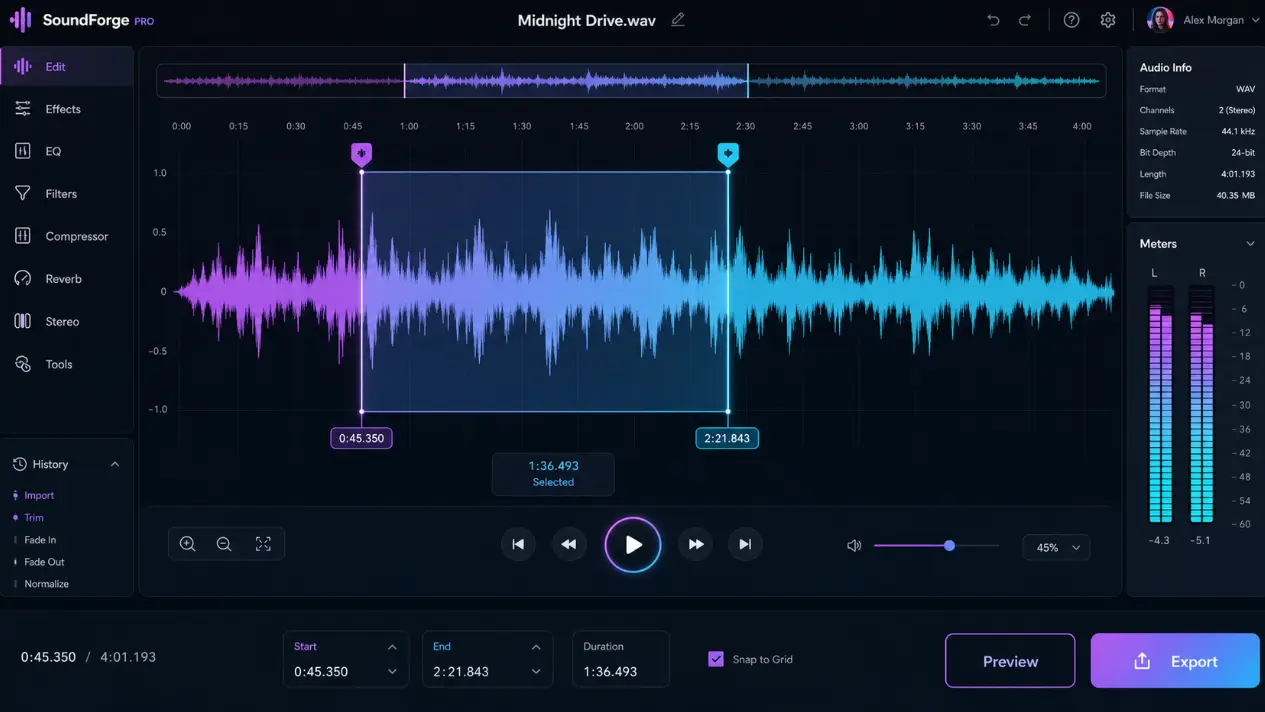
Instead of guessing where to cut, you can use a visual waveform. As a song trimmer online, it lets you drag the start and end handles, listen to the selection, and adjust it until the clip sounds right.
This makes it useful for quick edits like trimming songs, voice notes, podcast clips, and audio for videos.
Why Cut Music Online in Your Browser?
Traditional audio editors are powerful, but they can be too complex for simple cuts. If you only need to remove silence, shorten songs, or grab one section of a track, a browser tool is often faster — and a good music cutter online usually costs far less than most paid desktop apps.
No software installation
You can open the tool in your browser and start editing without downloading a desktop app.
Faster for simple edits
For basic trimming, you do not need a full production timeline. Select the part you want, preview it, and export.
Easy for beginners
A waveform-based song shortener is more intuitive than a professional workstation. You can see the sound, move the handles, and understand what you are keeping.
Useful across different projects
The same audio cutter and looper can help with ringtones, podcasts, social videos, voice memos, music loops, and demos.
How to Cut Music Online in 3 Steps
If you are wondering how can I cut music quickly, you can do it in three simple steps — no editing experience needed.
You can cut audio in three simple steps — no editing experience needed.
Step 1: Add Your Audio File
Drag and drop your file into AI Make Song, or click to browse from your device. Supported formats may include MP3, WAV, M4A, and OGG, depending on your browser and file type.
Step 2: Select the Section
Use the waveform handles to choose where the clip should start and end. Play the selected part to make sure it includes exactly what you need.
Step 3: Export the Clip
Once the selection sounds right, export and download the trimmed file. You can then use it in a video editor, podcast workflow, music project, or personal file library.
5 Useful Ways to Use an Audio Cutter
1. Cut a Song Into a Short Clip
Choose the best part of a track and cut a song into a shorter clip for personal listening, editing, or creative use. You can also shorten songs down to the exact length you need — for example, turning a 3-minute song into a 20-second ringtone takes only seconds.
2. Clean Up a Podcast Segment
Remove long pauses, mistakes, or unwanted sections from a recording. You can also create short highlight clips for promotion.
3. Prepare Audio for Social Videos
Cut music online to the right length for reels, shorts, TikTok videos, YouTube intros, or product demos.
4. Trim Voice Notes and Recordings
If a voice memo is too long, keep only the useful part before sharing or saving it.
5. Slice Music Loops and Demo Ideas
As a soundtrack cutter, AI Make Song lets musicians and producers quickly isolate a loop, hook, intro, or demo section without opening a full editing session.
Tips for Getting a Clean Cut
Use the waveform carefully
Zoom in if needed and place your handles as close as possible to the correct start and end points.
Cut during quiet moments
For speech, try to cut during natural pauses. This helps the final clip sound smoother.
Preview before exporting
Always listen to the selected section before downloading. A short preview can help you catch rough starts, missing words, or awkward endings.
Start wide, then refine
If you are unsure where to cut, begin with a slightly larger selection, then move the handles inward and preview again until the clip is tight.
Frequently Asked Questions
Does cutting reduce the audio quality?
Trimming only removes the parts outside your selection, so the audio you keep stays as-is. Any quality difference usually comes from the export format you choose, not from the cut itself.
Can I use a song shortener on a long recording?
Yes. You can load a longer track and use the song shortener to keep just one section. Very large or long files may depend on your browser, device memory, and format, so results can vary.
Does the soundtrack cutter change my original file?
No. The soundtrack cutter exports a new trimmed clip, so your original file stays untouched on your device. You can go back and cut a different section any time.
Can I loop a section instead of only cutting it?
Yes. Because it works as an audio cutter and looper, you can isolate a short section and repeat it — handy for beats, background loops, and demo ideas.
Is AI Make Song free to use?
Yes. This music cutter online can be used for basic trimming tasks for free. Some limits or advanced options may vary depending on the version of the tool.
Ready to Cut Your First Clip?
Whether you are looking to cut a song, clean up a podcast, trim a voice memo, or prepare audio for a video, AI Make Song gives you a quick way to turn a full file into a clean clip.
Add your file, select the part you want, cut audio, preview it, and export your first clip in seconds.
Ready to Start Creating?
▶ Try AI Song Generator Now - Transform your ideas into complete songs instantly
🎵 Use Vocal Remover Tool - Separate vocals from any song with AI
🖼️ Try Photo to Music AI - Turn photos into matching music online
🎬 Create AI Music Videos - Turn your tracks into videos with AI
Explore More AIMakeSong Tools
Music Tools
- AI Song Maker: Generate Unique Music Free
- AI Music Generator: Create Songs with AI
- Text to Song Generator: Create Music From Words
- AI Lyrics to Song: Turn Lyrics Into Complete Music
- The Ultimate AI Lyrics Generator for Effortless Song Writing
- AI Song Name Generator: Create Catchy Song Titles
- Sample a Song: Generate Similar Music from a Reference Track
- Hum to Song: Turn Humming Into a Complete Song
- Happy Birthday Song Generator: Create Personalized Gift Music
- Cheer Music Maker: Create Energetic Cheer Songs
- Diss Track Generator: Create AI Diss Tracks
- AI Rap Generator: Create Rap Songs with AI
- FNF Song Maker: Create Friday Night Funkin Style Music
- Song to Instrumental Converter: Remove Vocals and Create Backing Tracks
- AI Vocal Remover: Separate Vocals and Instrumentals
- Stem Splitter: Split Songs Into Multi-Track Stems
- Online Audio Cutter: Trim and Cut Audio Online
- AI Music Editor: Edit and Refine AI Music
- Singing Voice: Create AI Singing Voices
- AI Song Cover: Create AI Covers with Different Voices
- AI Audio to MIDI: Convert Audio Into Editable MIDI
- AI Music Analyzer: Analyze Tempo, Key, and Structure
- AI Sound Effects Generator: Create Custom Sound Effects
- Sound Effects Library: Browse Ready-to-Use AI Sound Effects
- Photo to Music AI Generator: Turn Photos Into Music
Image Tools
Video Tools
- AI Music Video Generator: Create Music Videos with AI
- Photo Video Maker: Create Videos from Photos and Music
- AI Lyric Video Maker: Create Lyric Videos with AI
- AI Singing Photo Generator: Make Photos Sing with AI
- AI Text to Video: Generate Videos from Prompts
- Reference to Video: Create Videos from Image, Video, and Audio References